
By Shahzad · Published October 12, 2026 · Google Cloud console layout as of that date
To connect Gmail to Hermes Agent, you give it a Google Cloud OAuth client, not your password. Hermes Agent is the open-source AI agent from Nous Research, and its bundled Google Workspace skill uses the Gmail API, plus Calendar, Drive, Sheets, Docs and Contacts, through OAuth.
Here’s the short answer. Create a Google Cloud project, enable the Gmail API (and the other Workspace APIs Hermes uses), set the Google Auth Platform audience (Internal for a Workspace mailbox, External otherwise), create a Desktop app OAuth client, download its JSON file once, and run Hermes’ setup.py consent flow. It takes about 15 minutes and costs nothing.
I did exactly this on October 12, 2026 for my Hermes Agent, which runs on my VPS and handles a mailbox on my designsvalley.com Google Workspace. Every screenshot below comes from that setup, with IDs blurred.
This guide is for anyone running Hermes Agent who wants it working with Gmail, Google Calendar and Google Drive. The Google Cloud part (Steps 1 to 4) is the same for any self-hosted AI agent that uses the Gmail API.
Key takeaways
- Hermes has two ways to do email: the email gateway (IMAP/SMTP with an app password, email only) and the Google Workspace skill (OAuth, covers Gmail, Calendar, Drive, Sheets, Docs, Contacts). This guide covers the second.
- One Google Cloud project per agent keeps credentials and quotas tidy.
- Enabling the Gmail API is a separate step. Without it, consent works but every API call fails.
- Use Internal if the agent’s mailbox is inside your Google Workspace. No 7-day token expiry, no “unverified app” warning, no publishing step.
- Use External for an @gmail.com mailbox, and publish the app, or your refresh token dies after 7 days.
- Pick Desktop app as the client type for a local or VPS agent. No redirect URI to register.
- The client secret is shown only once. Download the JSON immediately and store it like a password.
- Ask for the smallest Gmail scopes the agent really needs.
Hermes email gateway vs Google Workspace skill: which do you need?
Hermes Agent can handle email in two different ways, and picking the wrong one wastes time. The Hermes email gateway lets people email the agent and get replies; the Google Workspace skill lets the agent work inside your Gmail, Calendar and Drive. Here’s how they differ, from the Hermes docs:
| Hermes email gateway | Google Workspace skill (this guide) | |
|---|---|---|
| What it does | You email the agent’s address, it replies in-thread | The agent reads, sends, labels mail and uses Calendar, Drive, Sheets, Docs, Contacts |
| How it connects | IMAP and SMTP | Gmail API and other Google APIs via OAuth |
| Gmail credential | A Google App Password (needs 2-Step Verification) | A Desktop OAuth client plus your consent |
| Google Cloud project | Not needed | Needed |
| Setup | hermes gateway setup, then choose Email | Steps 1 to 5 below |
The Hermes docs also say that if you only need email, the Himalaya skill with a Gmail App Password is quicker and needs no Google Cloud project. I went with the Workspace skill because I wanted Calendar and Drive too, and because OAuth scopes are easier to limit and revoke than an app password.
What you need before you start
The setup is short, but a wrong account at the start breaks everything later. Google ties the project, the consent screen and the authorization to whichever account is signed in, so check this first.
- The right Google account. Sign in to the Google Cloud console with the Workspace account that owns the agent’s mailbox. In my case that’s an address on designsvalley.com.
- A Google Workspace organization (optional). If your domain is on Workspace, the project can sit under the organization and you can use Internal. A plain @gmail.com account works too, with a few extra steps.
- A place to run the agent. A laptop or a VPS with Python is enough.
- A rule for secrets. Never paste the client secret into chat, tickets or git.
Step 1: Create the Google Cloud project
A Google Cloud project is the container for everything the agent uses: enabled APIs, the consent screen, OAuth clients and quotas. Giving each agent its own project means you can shut it down later without touching anything else.
- Open console.cloud.google.com/projectcreate.
- In Project name, replace the generated name (“My Project 12345”) with your agent’s name. I typed
Hermes. - Google builds a project ID from the name. It can’t be changed later, so note yours.
- Leave Organization and Parent resource as your domain (designsvalley.com for me).
- Click Create once, then wait. Creation is asynchronous and takes 10 to 60 seconds.
- Open the bell icon (Notifications). When “Create Project” shows a green tick, click Select project.
- Confirm the project picker at the top shows your project.
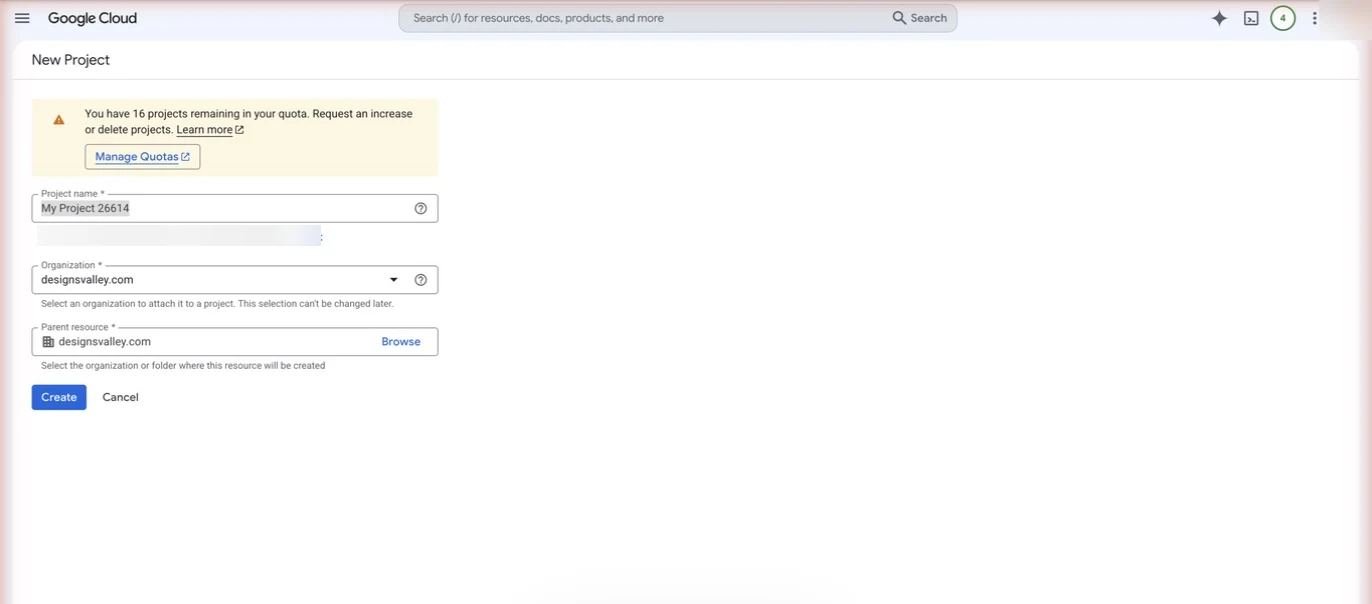
A mistake I made: the project list can lag for a minute after creation, so it looks like nothing happened. I clicked Create again and ended up with two projects named Hermes. If that happens to you, keep the one you selected and shut the other down under IAM & Admin, Manage resources.
Step 2: Enable the Gmail API (and any other APIs)
Creating an OAuth client does not switch any API on. This catches many people: consent succeeds, then every call fails with “API has not been used in project … or it is disabled”. So enable each API your agent will call before you go further.
- Go to APIs & Services, Library and search for Gmail API.
- Click the blue Enable button. The page then shows “API Enabled” and a Manage button.
- Repeat for any other API the agent needs.
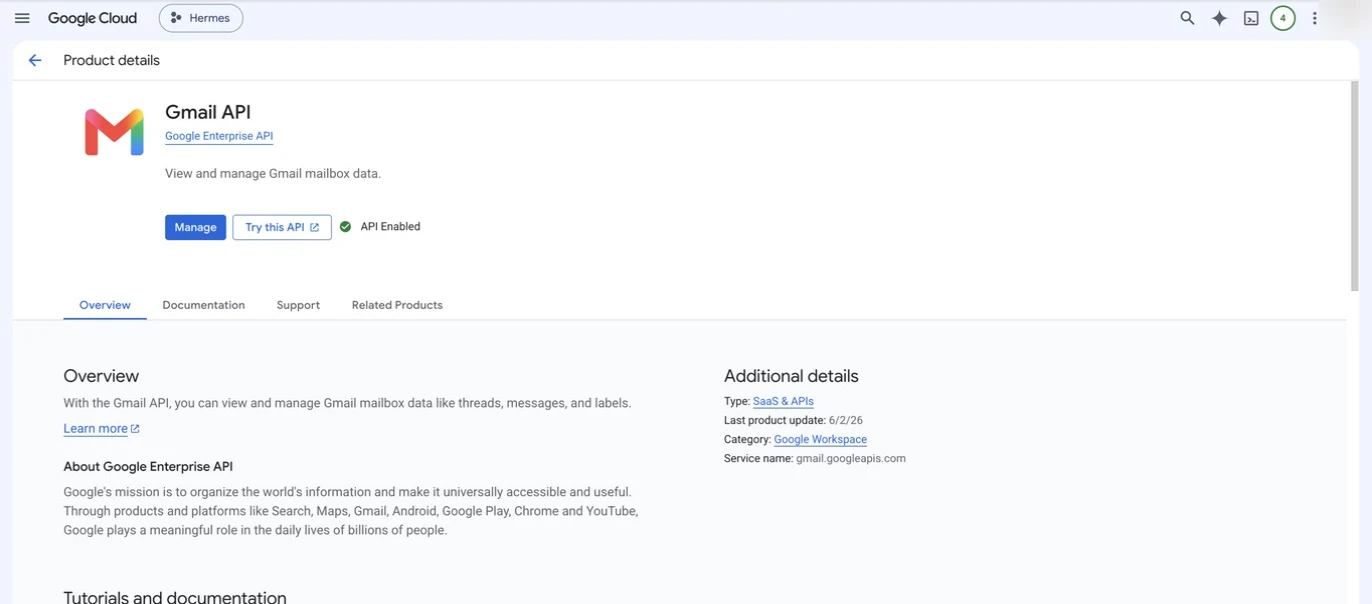
Hermes does more than email, so I enabled six APIs in the same project:
| API | What the agent uses it for |
|---|---|
| Gmail API | Reading, sending and labelling mail |
| Google Calendar API | Calendar events |
| Google Drive API | Files |
| People API | Contacts (read-only) |
| Google Sheets API | Spreadsheets |
| Google Docs API | Documents |
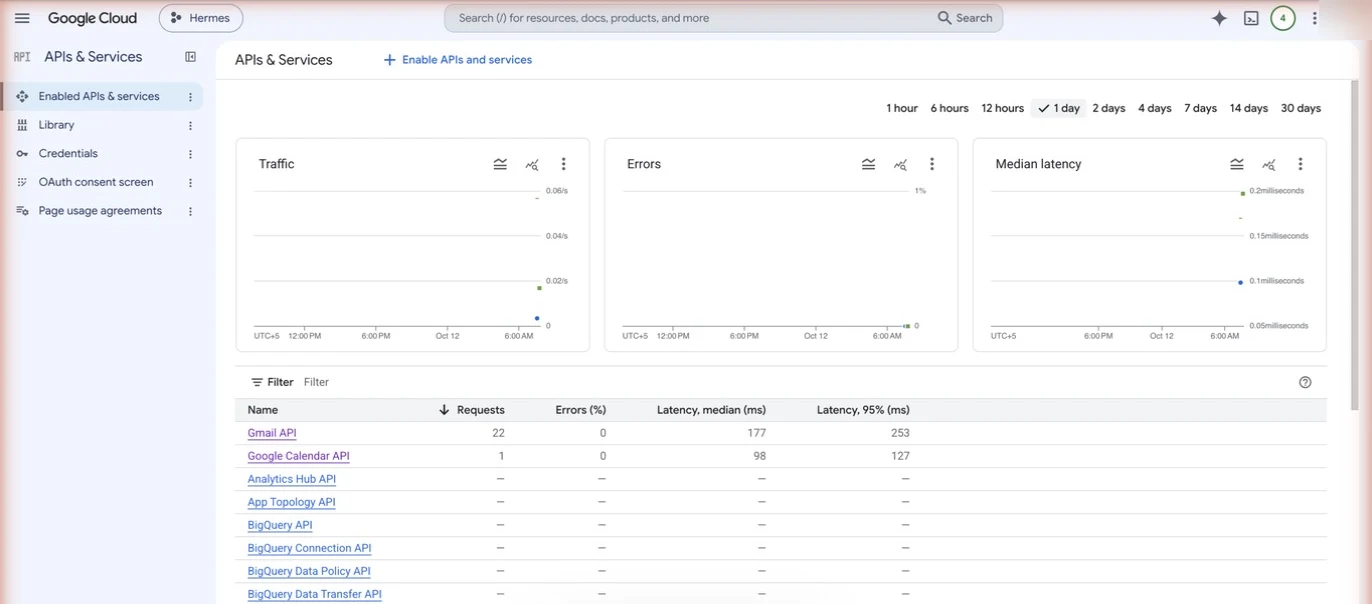
To check, open APIs & Services, Enabled APIs & services and scroll the table. Once the agent is live, this dashboard also shows traffic, errors and latency per API, which is the quickest way to see whether it’s really calling Gmail.
Step 3: Configure the Google Auth Platform audience
Google now calls the consent screen the Google Auth Platform. It replaced the old “OAuth consent screen” wizard and splits settings into Branding, Audience, Clients and Data Access. You must configure it before Google lets you create a client.
- Open console.cloud.google.com/auth/overview with your project selected.
- You’ll see “Google Auth Platform not configured yet”. Click Get started.
- App information: app name (I used
Hermes) and a user support email. - Audience: choose Internal or External (see the next section).
- Contact information: an email address Google can reach you on.
- Finish: agree to the Google API Services User Data Policy, click Continue, then Create.
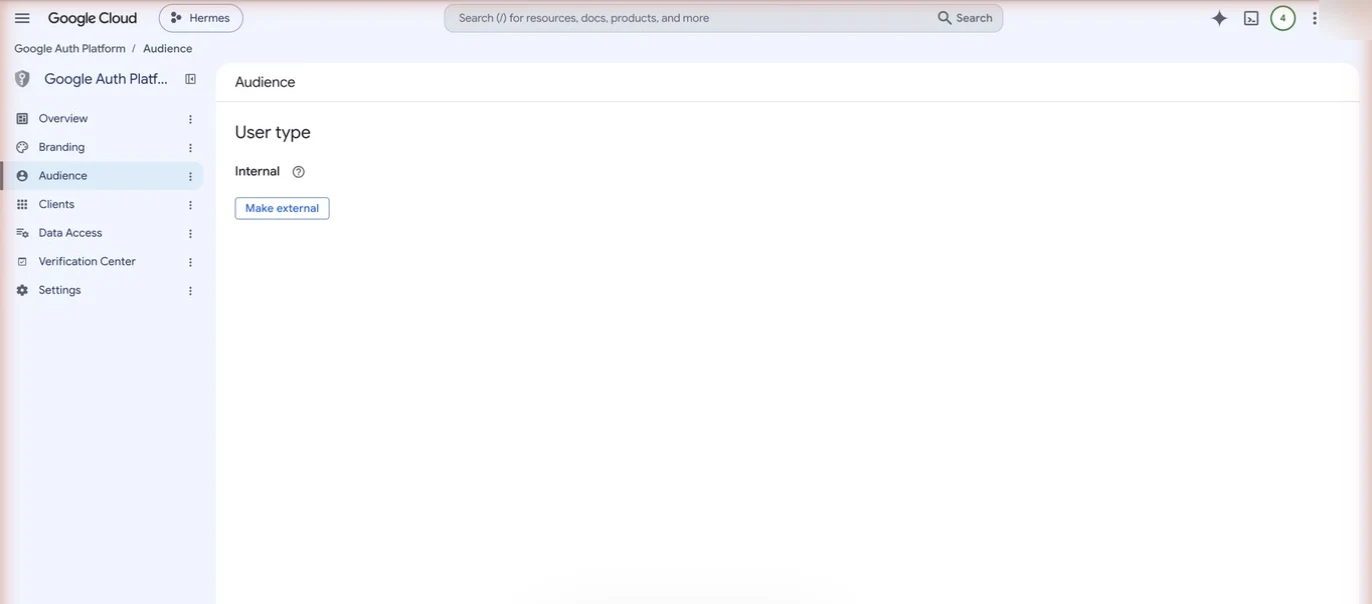
- Open Audience in the left menu and confirm the user type.
Internal vs External: which should you choose?
Choose Internal if the agent’s mailbox belongs to your Google Workspace organization; choose External if it’s an @gmail.com address or another domain. Internal limits consent to your organization’s users and skips Google’s testing limits. External works for any Google account but starts in Testing mode.
Here’s how they compare, based on Google’s Manage App Audience help page:
| Internal | External (Testing) | External (In production) | |
|---|---|---|---|
| Who can authorize | Only your organization’s accounts | Up to 100 listed test users | Any Google account |
| Needs a Workspace organization | Yes | No | No |
| Refresh token lifetime | Normal | Expires 7 days after consent | Normal |
| “Unverified app” warning | No | Yes, a test-user warning | Yes, until verified for sensitive or restricted scopes |
| Verification | Not needed | Not needed | May be required for Gmail scopes |
I chose Internal for Hermes because its mailbox is on designsvalley.com. There’s no 7-day expiry, no warning screen and nothing to publish.
If you use External, add your own Gmail address under Audience, Test users first. For an agent you run yourself, then click Publish app so the status changes to In production. That stops the 7-day token expiry. Users will still see an “unverified app” warning for Gmail scopes, and a new-user cap of 100 applies until verification. Gmail’s read and modify scopes are restricted scopes, so an app for the public needs full verification, which can include a security assessment. For a private agent that only you authorize, that’s usually acceptable. One more note from Google: Workspace admins can block restricted Gmail scopes even for Internal apps, so check Admin console settings if consent fails.
Step 4: Create the Desktop OAuth client ID
The OAuth client is the credential your agent uses to ask Google for tokens. For an agent that runs on a laptop or VPS, the Desktop app type is the simplest because it uses a loopback redirect, so you don’t register any redirect URI or run a callback server.
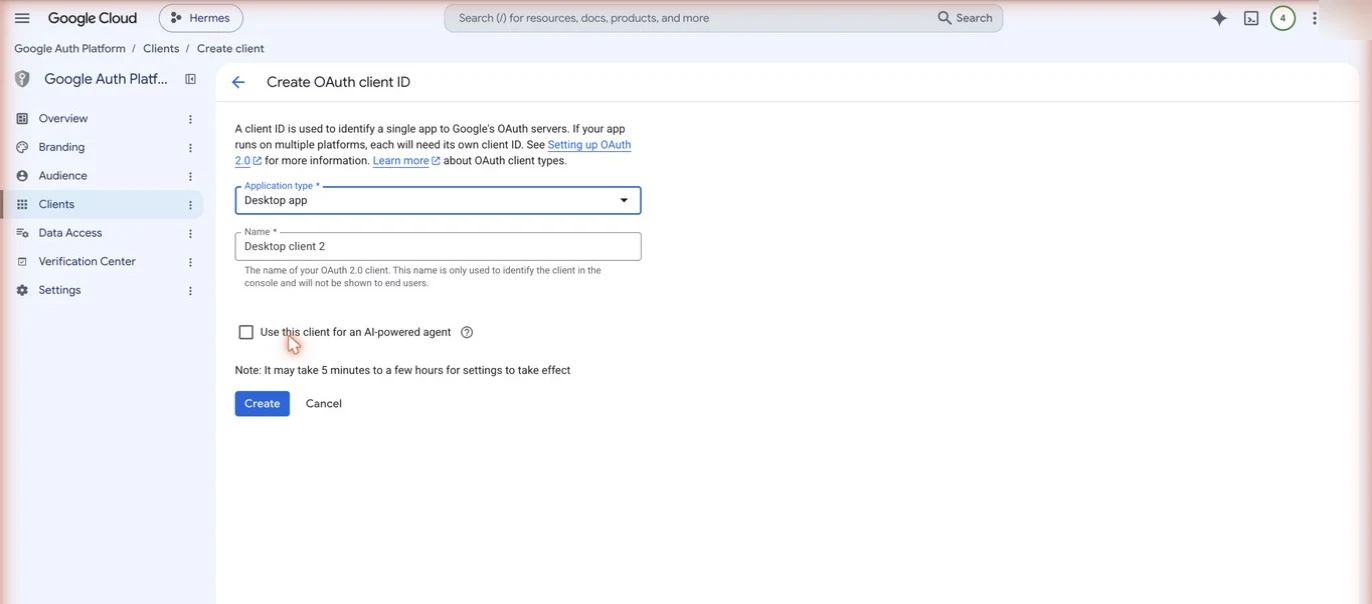
- Open Google Auth Platform, Clients and click Create client.
- Application type: choose Desktop app. Don’t choose Web application unless the agent has an HTTPS callback URL.
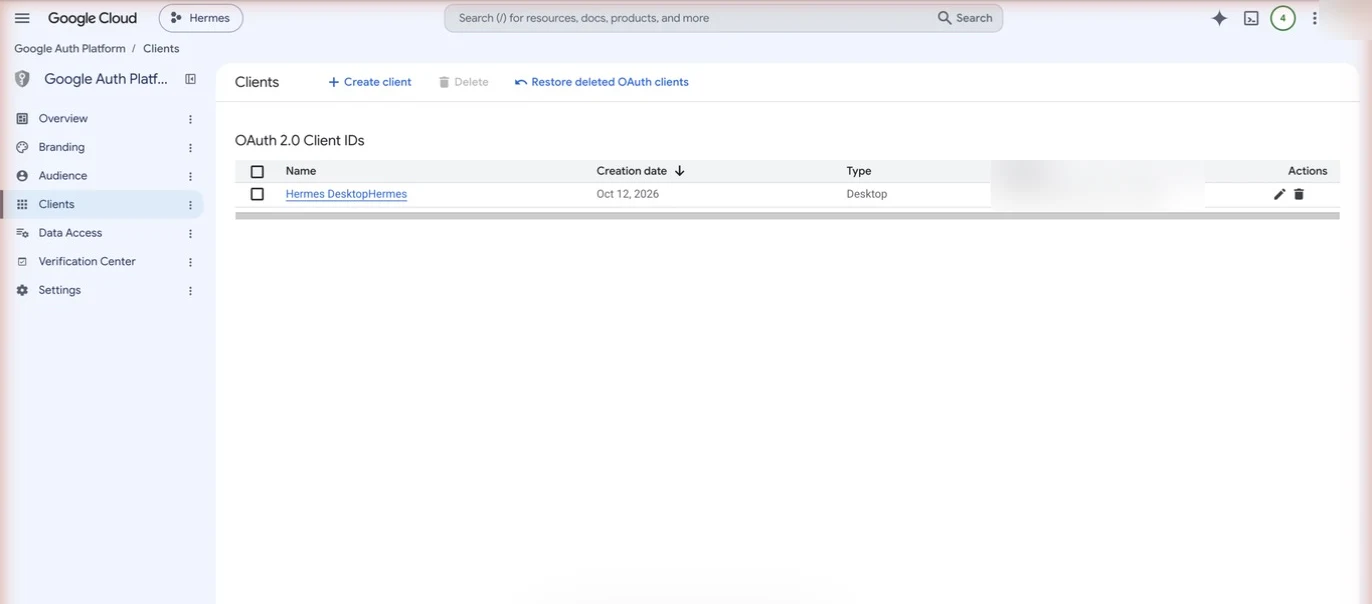
- Name: a label only you see. Select the existing text first, or your text gets appended. Mine became “Hermes DesktopHermes”, which is harmless but untidy.
- Decide on the Use this client for an AI-powered agent checkbox (explained below).
- Click Create.
- The OAuth client created dialog shows the Client ID and Client secret. Click Download JSON right away.
The download matters. Since 2025, Google shows the full client secret only at creation. After that the console shows just the last four characters (Manage OAuth Clients). If you lose it, open the client, add a new secret, update your agent and disable the old one.
The new client then appears in the list:
What does “Use this client for an AI-powered agent” do?
The “Use this client for an AI-powered agent” checkbox is a self-declaration that tags an OAuth client as one used by AI agents acting on a user’s behalf. According to Google, it grants no extra scopes or privileges, and agentic clients still need user consent and normal app verification.
Google’s Manage OAuth Clients page adds three useful points:
- If your app has both human-driven features and agent workflows, Google says to keep separate client IDs for each.
- Separate agentic clients let Workspace admins apply their own policies to AI agents without affecting human users.
- Some Google MCP endpoints, such as the Workspace tools, only accept calls authorized with an agentic client ID.
For Hermes I left the box unticked, because it calls the Gmail REST API directly through its own setup script, not a Google MCP server. If your agent connects through Google Workspace MCP servers, tick it. I’d also tick it for any new client that exists only for an agent, since that’s what Google designed it for.
Now Hermes turns the client JSON into a token. The commands below come from my setup notes and match the Hermes Google Workspace skill docs. The docs also say you can simply ask Hermes to set up Google Workspace and it walks you through these steps. For other agents, the official Gmail API Python quickstart follow the same pattern.
- Copy the JSON to the server and lock it down:
scp ~/Downloads/client_secret_*.json root@YOUR_VPS:/home/hermes/.hermes/google_client_secret.json
ssh root@YOUR_VPS "chown hermes:hermes /home/hermes/.hermes/google_client_secret.json && chmod 600 /home/hermes/.hermes/google_client_secret.json"
- As the
hermesuser, register the file:setup.py --client-secret /home/hermes/.hermes/google_client_secret.json - Print the consent URL:
setup.py --auth-url - Open the URL in a browser signed in as the mailbox account and click Allow.
- The browser lands on a “can’t connect” page at
localhost:1. That’s expected, because nothing listens there. Copy the full URL from the address bar. - Paste it back:
setup.py --auth-code "<full localhost URL>". This writesgoogle_token.json. - Verify with
setup.py --check(should print AUTHENTICATED) andsetup.py --check-live, which makes a real API call and also catches a disabled API.
Finally, make sure the skill is on: remove google-workspace from skills.disabled in Hermes’ config.yaml if it’s listed.
Don’t rerun the consent flow over and over. Each authorization issues a new refresh token, and Google keeps a limited number per client per account, so the oldest ones silently stop working.
How do I connect Hermes Agent to Google Calendar and Drive?
To connect Hermes Agent to Google Calendar or Google Drive, enable the Google Calendar API or Google Drive API in the same Google Cloud project, then authorize Hermes with those services included. There’s no separate client: one Desktop OAuth client and one consent cover Gmail, Calendar, Drive, Sheets, Docs and Contacts.
In practice that means:
- In Step 2, enable Google Calendar API and Google Drive API (and Sheets, Docs, People if you want them).
- In Step 5, authorize with the services you need. According to the Hermes skill docs,
setup.py --auth-urlaccepts a--servicesoption, for example--services email,calendar, orall. I authorized all of them in one consent. - If a Calendar or Drive call later fails with “Access Not Configured”, the API isn’t enabled; with “Insufficient Permission”, the scope wasn’t granted, so re-authorize with that service.
What I can’t show you here is day-to-day Calendar or Drive usage: my screenshots cover the Google Cloud side only. The APIs & Services dashboard in Step 2 does show Hermes making Google Calendar API calls alongside Gmail.
Does Hermes use a Gmail MCP server?
No, not in this setup. Hermes’ Google Workspace skill calls Google’s APIs directly with its own scripts (or the gws CLI if it’s installed), not through an MCP server. Hermes Agent does support MCP servers in general, configured under mcp_servers in config.yaml (Hermes MCP docs).
Google also offers Google Workspace MCP servers for Gmail and other apps. I haven’t connected Hermes to them, so I won’t give untested steps. If you try it, note that Google says some Workspace MCP endpoints accept only an OAuth client marked as an AI-powered agent (see Step 4).
How do you communicate with Hermes Agent?
You talk to Hermes Agent in its terminal interface or through its messaging gateway. According to the Hermes messaging docs, the gateway is one background process that connects Hermes to platforms such as Telegram, Discord, Slack, WhatsApp, Signal, SMS and email. You set it up with hermes gateway setup and run it with hermes gateway.
Connecting Gmail through this guide doesn’t change how you chat with Hermes. It gives Hermes tools to work on your mailbox, whichever channel you use to ask.
How to connect Hermes Agent with WhatsApp
Per the Hermes WhatsApp docs, you run hermes gateway setup, pick WhatsApp, and scan a QR code. The built-in bridge emulates a WhatsApp Web session rather than using the official WhatsApp Business API, and the docs recommend a second phone number for bot mode. I haven’t set up WhatsApp for my Hermes, so follow the official page for the details. If you want a business-grade option, my list of WhatsApp Business automation tools compares official-API tools.
Which Gmail API scopes should Hermes Agent use?
An AI agent should request the narrowest Gmail scope that covers its job: gmail.readonly for reading, gmail.send for sending only, and gmail.modify when it must label, archive or mark mail. Avoid the full https://mail.google.com/ scope unless the agent must permanently delete mail.
| Scope | Lets the agent | Use when |
|---|---|---|
gmail.readonly | Read messages and settings | Summaries, triage, search |
gmail.send | Send mail only | Notifications, replies drafted elsewhere |
gmail.compose | Create drafts and send | Human-reviewed drafts |
gmail.modify | Read, send, label, archive, trash | An inbox assistant |
https://mail.google.com/ | Everything, incl. permanent delete | Rarely justified |
Hermes requests gmail.readonly, gmail.send and gmail.modify, plus calendar, drive, contacts.readonly, spreadsheets and documents, in one consent. gmail.modify already covers reading, so if I rebuilt it I’d test dropping gmail.readonly. Check Google’s Gmail API scopes list before you choose, and add scopes under Data Access for External apps.
Security best practices for an AI agent with Gmail access
Your agent’s token can read a real inbox, so treat it as seriously as the mailbox password. These are the habits I follow, matching Google’s own client secret guidance.
- Least privilege. Fewer scopes means less damage if the token leaks.
- Store secrets properly. File permission 600, owned by the agent user, or a secret manager such as Google Cloud Secret Manager. Never commit the JSON or token to git.
- Rotate if exposed. Add a new client secret, switch the agent over, disable and delete the old one.
- Let the library refresh tokens. Access tokens expire after about an hour; Google’s client libraries use the refresh token to get a new one automatically. Your job is to keep the refresh token valid.
- Know what kills the token. Revoking access in the Google Account, a password change for Gmail scopes, Testing mode’s 7-day limit, or six months without use.
- Keep humans in the loop for sending. If the agent drafts replies, have it use drafts and let you approve before anything goes out.
- Clean up. Delete unused projects and clients. Google auto-deletes OAuth clients that are inactive for six months anyway.
Common errors and how to fix them
Most failures come from four places: the wrong account, a disabled API, Testing mode, or a redirect mismatch. Here are the ones I hit or prepared for while setting up Hermes.
| Error | Cause | Fix |
|---|---|---|
“Access blocked: this app is internal to your organization” (org_internal) | The account consenting is outside your Workspace | Sign in with the Workspace account, or switch Audience to External |
access_denied or “Access blocked” for an External app | The account isn’t a test user, or an admin blocked the scopes | Add it under Audience, Test users; check Workspace admin API controls |
| “Google hasn’t verified this app” | External app requesting sensitive or restricted Gmail scopes | For your own agent, click Advanced and continue; for a public app, apply for verification |
invalid_grant: Token has been expired or revoked after about 7 days | External app left in Testing | Publish the app, then authorize again |
| “API has not been used in project … or it is disabled” | Gmail API (or another) not enabled | Enable it in Step 2, wait a minute, retry |
redirect_uri_mismatch | The redirect URI doesn’t exactly match a registered one | Use a Desktop app client for local agents, or register the exact URI on a Web client |
| “can’t connect” at localhost after Allow | Expected with a loopback redirect where nothing listens | Copy the full URL and give it to your agent |
Related reads
FAQ
How do I connect Hermes Agent to Google Calendar?
Enable the Google Calendar API in the same Google Cloud project you use for Gmail, then authorize Hermes’ Google Workspace skill with the calendar service included. One Desktop OAuth client covers Gmail, Calendar and Drive, so you don’t need a second client or project.
How do you communicate with Hermes Agent?
You chat with Hermes Agent in its terminal or through its messaging gateway, which connects it to apps like Telegram, Slack, WhatsApp and email. Set up a channel with hermes gateway setup, then run hermes gateway.
How do I connect Hermes Agent with WhatsApp?
Run hermes gateway setup, choose WhatsApp and scan the QR code with the WhatsApp account Hermes should use. Hermes uses a WhatsApp Web bridge, not the official Business API, and its docs suggest a separate number for bot mode.
Is the Gmail API free to use for an AI agent?
Yes. Creating a Google Cloud project, enabling the Gmail API and creating an OAuth client cost nothing, and the Gmail API has no usage fee. It does have per-user and per-project quota limits, which a single personal agent rarely reaches.
Can I connect an AI agent to a personal @gmail.com account?
Yes. Choose External as the audience, add your address as a test user, then publish the app to In production so the refresh token doesn’t expire after 7 days. You’ll see an “unverified app” warning during consent, which is normal for a private app.
Should I choose Desktop app or Web application?
Choose Desktop app for an agent running on your laptop or a server you control, because it uses a loopback redirect and needs no registered URI. Choose Web application only when the agent has a public HTTPS callback, such as a hosted SaaS or a Claude connector.
Do I need a service account instead of OAuth?
For a single mailbox, no. A service account can access Gmail only through Workspace domain-wide delegation, which gives broad access across users and needs admin setup. User OAuth with a Desktop client is simpler and limited to one consenting account.
Why does my agent lose Gmail access after a week?
An External app in Testing mode issues refresh tokens that expire seven days after consent. Publish the app to In production, or use Internal for a Workspace mailbox, then authorize once more.
Final thoughts
Once the project, audience and Desktop client are in place, you only have to connect Gmail to Hermes Agent once. Hermes has been connected and receiving mail since this setup, and the APIs & Services dashboard is where I check it’s healthy.
Your next step: write down which scopes your agent truly needs, then run Steps 1 to 5 above. If you’re building agents to sell as a service, my guide on earning money with AI chatbots shows how to package them for clients.
About the author: I’m Shahzad, founder of Designs Valley. I’ve trained over 50,000 people to earn money online through my GBOB course, and I build and run AI agents for my own business. This guide documents my own setup of Hermes on October 12, 2026.


